Generating SSH Keys for GitHub
SSH keys let you authenticate to GitHub without typing your password each time. You'll create a keypair on your computer, add the public key to GitHub, and then verify the connection.
1) Create an SSH keypair
Open your terminal (or Git Bash on Windows) and run:
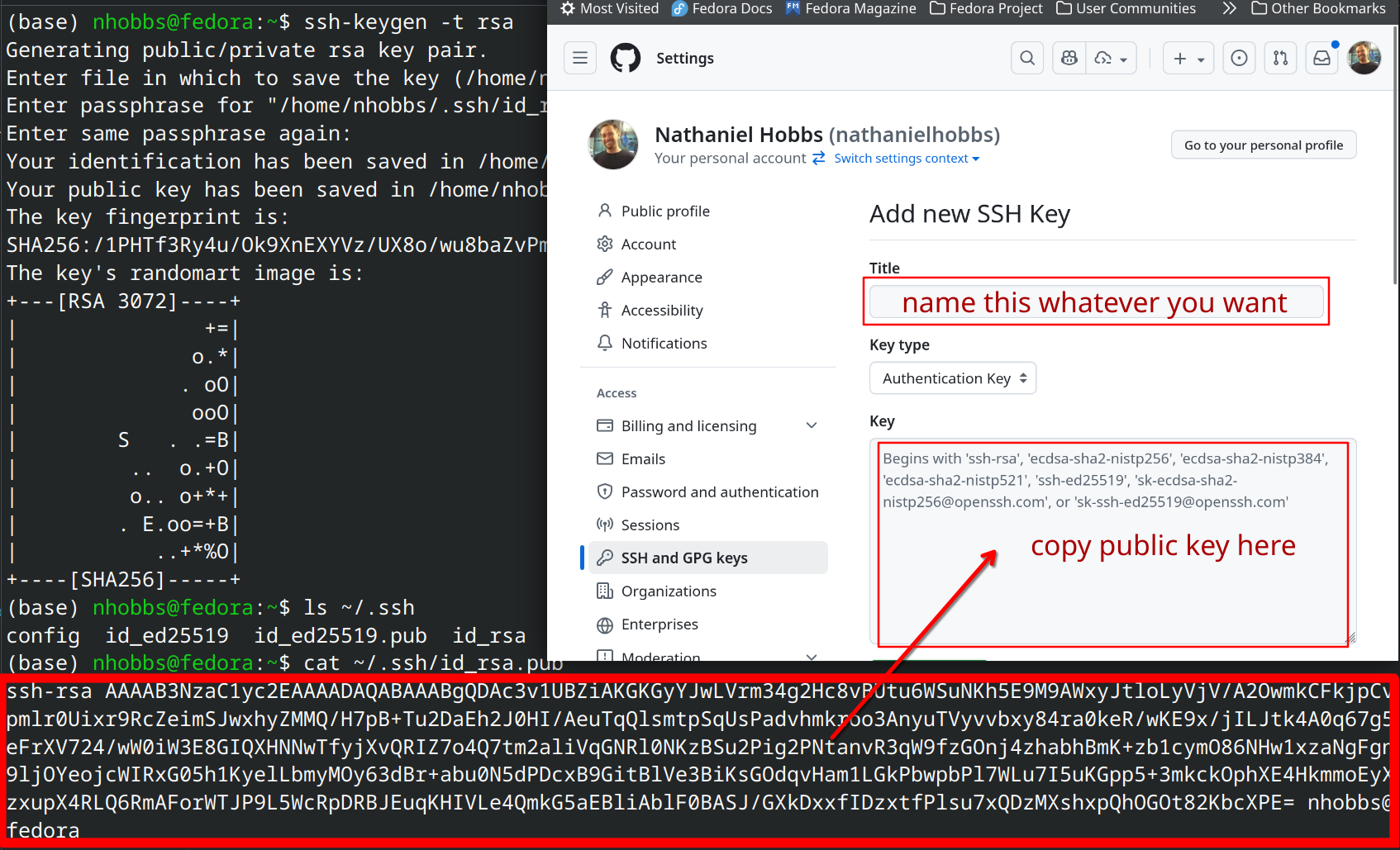
ssh-keygen -t rsaPress Enter to accept the default save location. When prompted for a passphrase, you may leave it empty and press Enter.
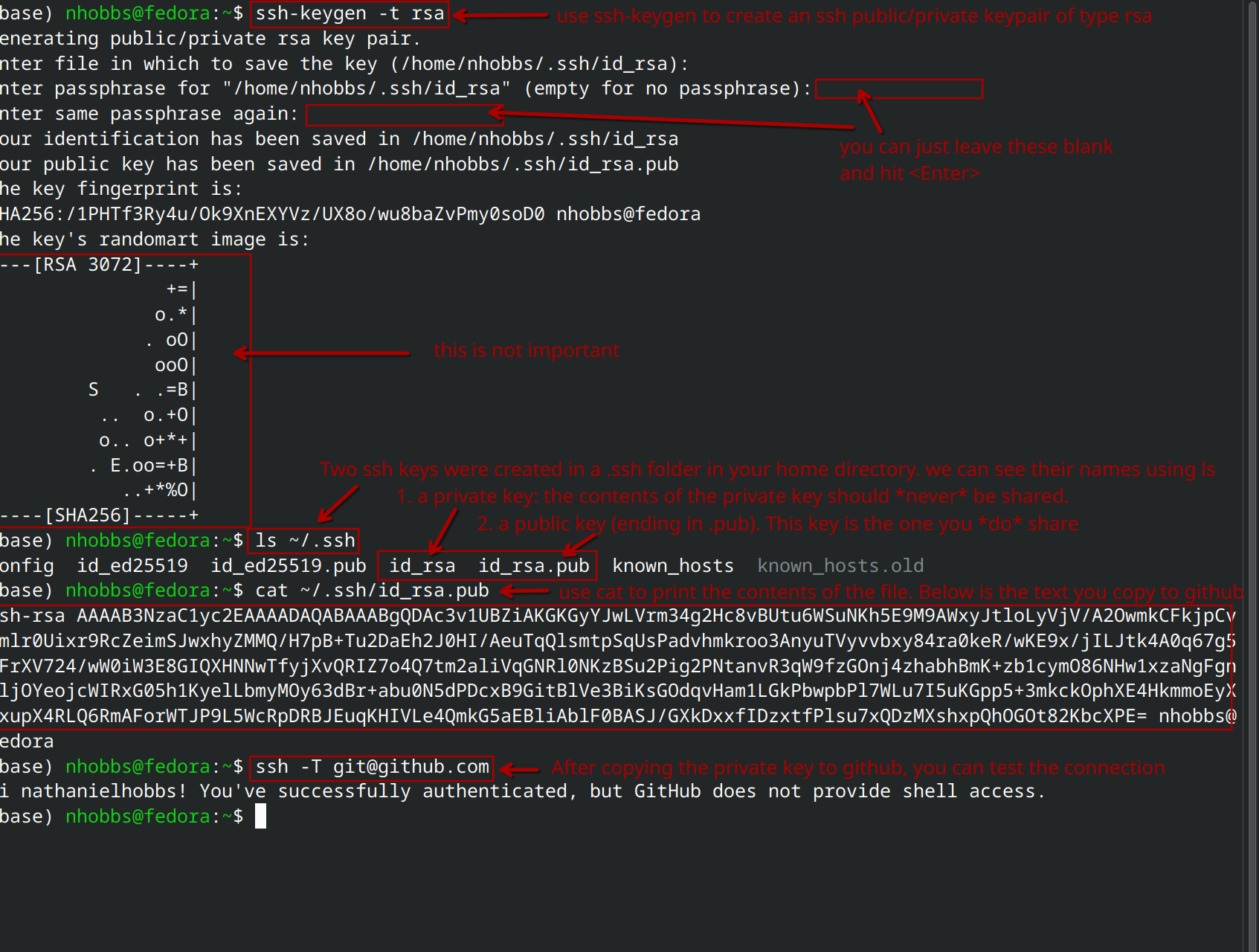
This creates two files in ~/.ssh:
id_rsa (your private key — never share it) and id_rsa.pub (your public key — this is safe to share).
2) Copy your public key
Print the public key and copy the entire line that begins with ssh-rsa:
cat ~/.ssh/id_rsa.pub3) Add the key to GitHub
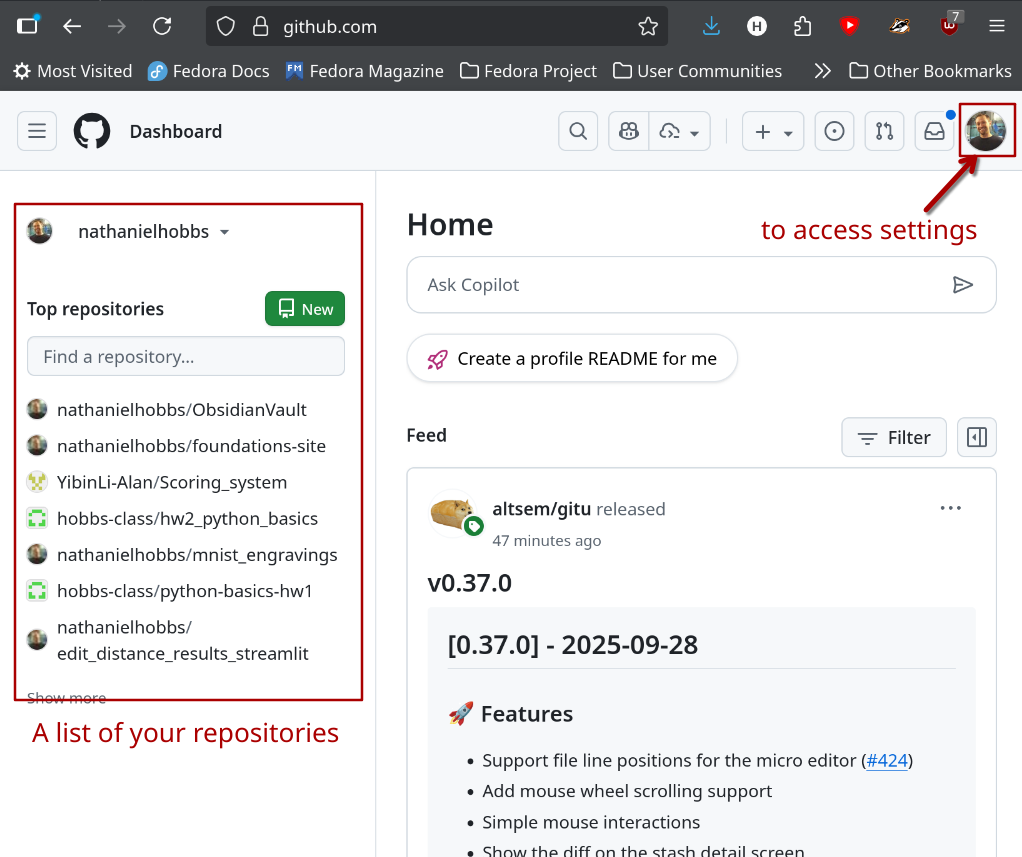
- Go to github.com and sign in.
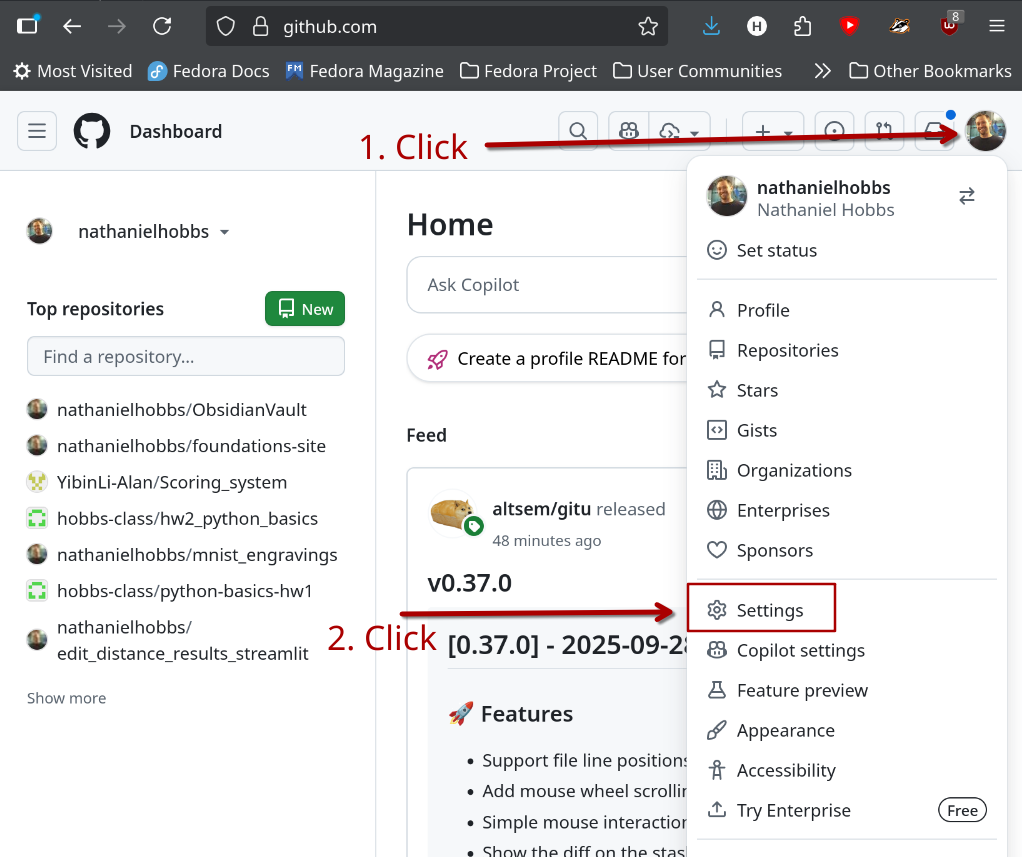
- Open the user menu (top-right) and click Settings.
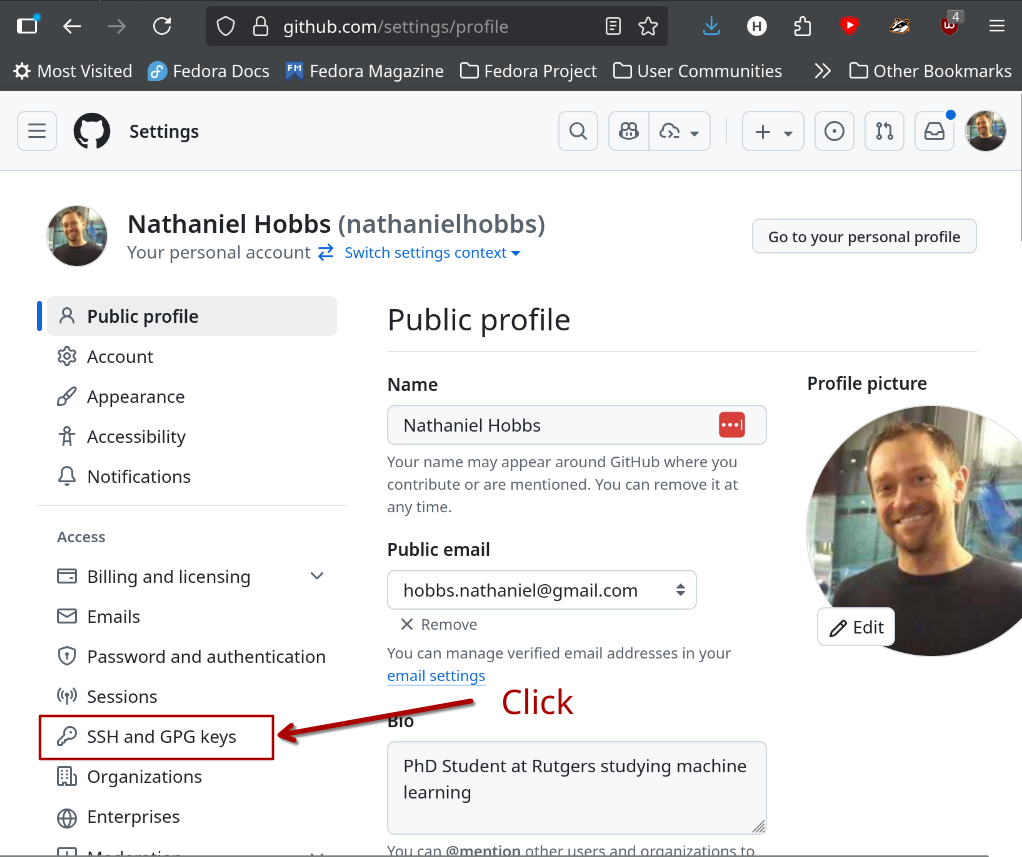
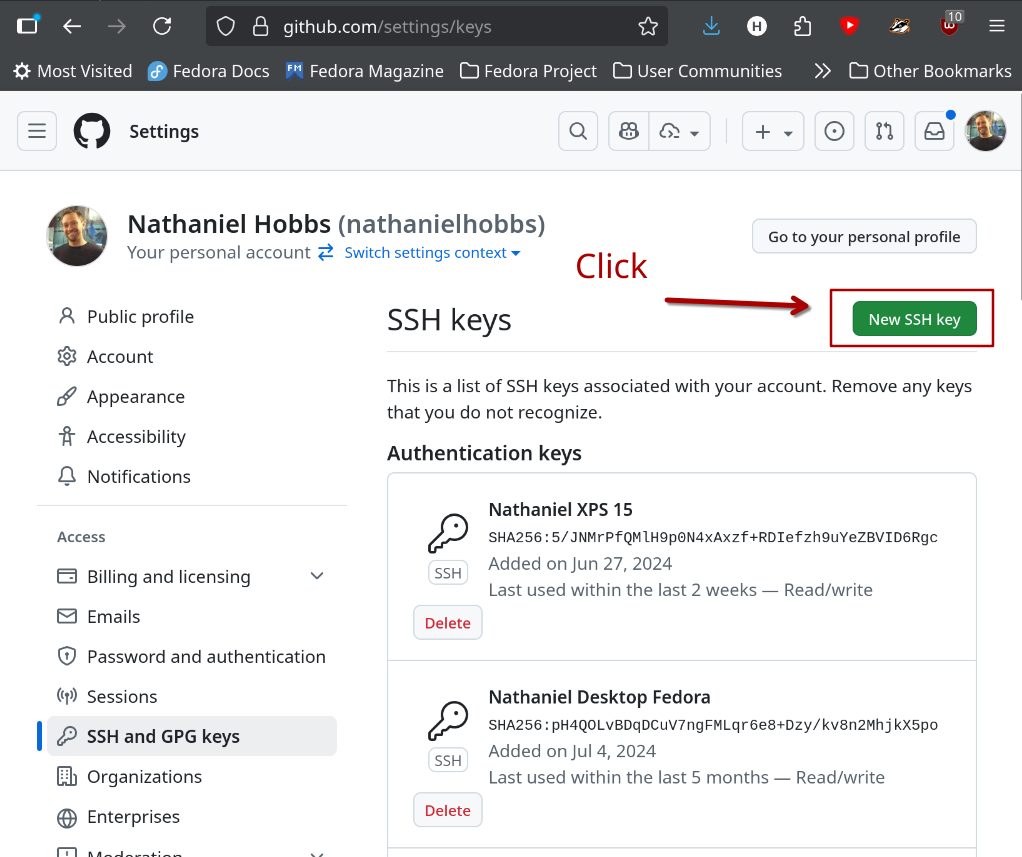
- In the left sidebar, click SSH and GPG keys.
- Click New SSH key, give it any name, and paste your public key.
4) Verify your connection
Back in your terminal, test authentication:
ssh -T git@github.comA successful message looks like: "Hi <username>! You've successfully authenticated, but GitHub does not provide shell access."
FAQ
- Where are my keys?
~/.ssh/id_rsa(private) and~/.ssh/id_rsa.pub(public). - Can I use ed25519 instead? Yes:
ssh-keygen -t ed25519. - Keep your private key safe. Never upload or email
id_rsa.